Total Battle Guide
Stacking Army Calculator
- Android Users: Use Pop-up View / Floating Window or Split Screen from your recent apps menu. This floats the sheet directly over Total Battle!
- iPhone Users: Use the App Switcher (swipe along the bottom screen edge) to instantly bounce between the game and your sheet.
Create Your Own Copy
To prevent accidental edits to the master formulas, the calculator requires you to generate a private, editable working copy on your Google Drive.
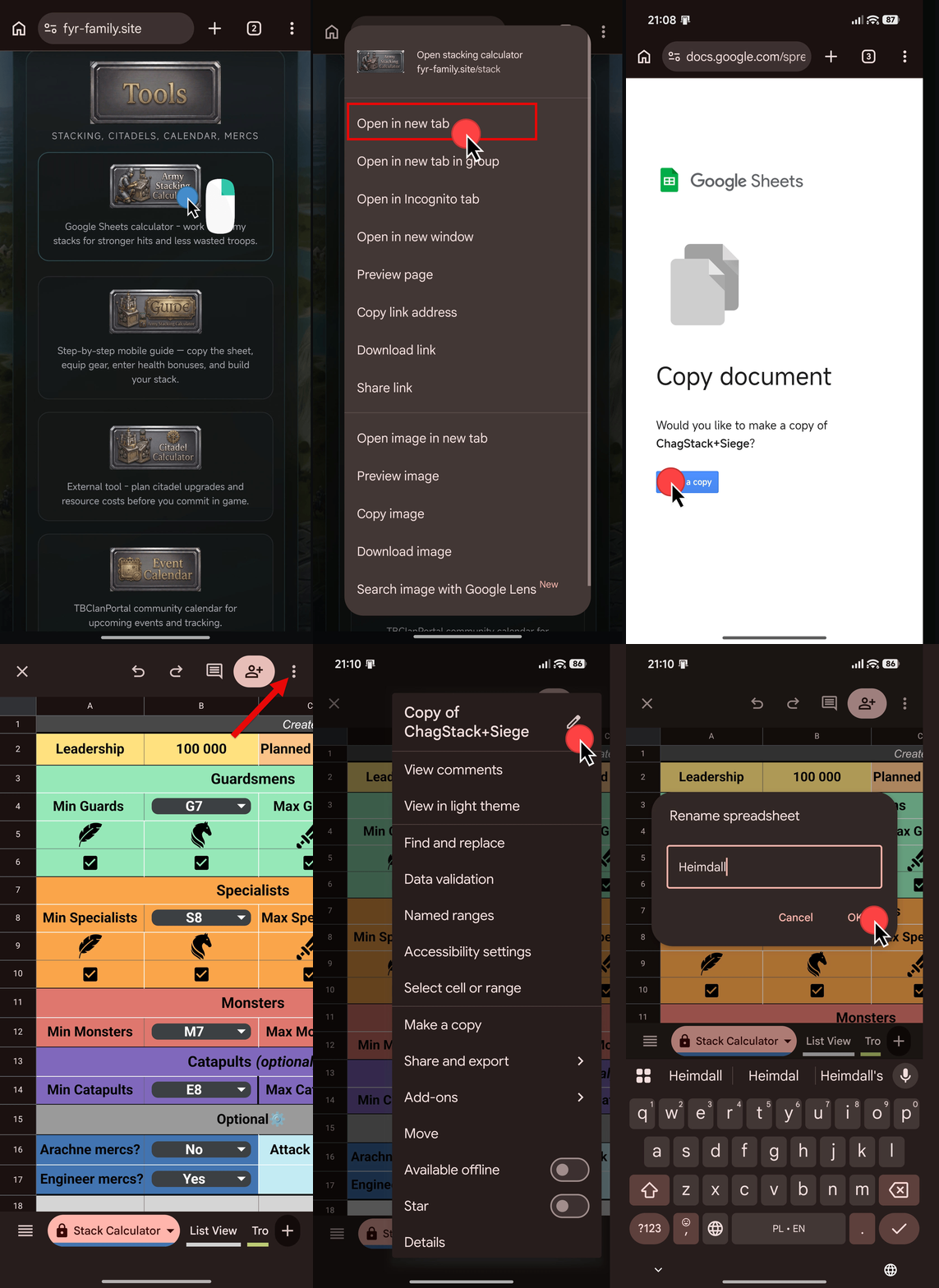
- Open fyr-family.site/stack in a new window in your browser.
- You will be redirected to Google Docs. Click the "Make a copy" button.
- Rename your sheet to match your specific setup so you stay organized during events!
Examples: "Cleo Stack", "Hercules Single Cap", or "3 Captains Siege".
Equip Your Attacking Setup
Before touching any numbers in the calculator, your exact attacking gear must be equipped in-game to reflect true base stats.
- Select Hero & Captains: Choose the exact setup you plan to send in the march (e.g., Cleopatra, Hercules, Beowulf, Skadi or Aydae).
- Equip Combat Gear: Put on your active attacking weapons, armor, and artifacts.
- Recommended Gear: Ragnarok store equipment or Immortal Warrior set (SK rewards).
- Recommended Artifacts: Ghostflame Lantern, Heart of Forest, Ifrit Lord's Belt, or Fan of the Five Winds.
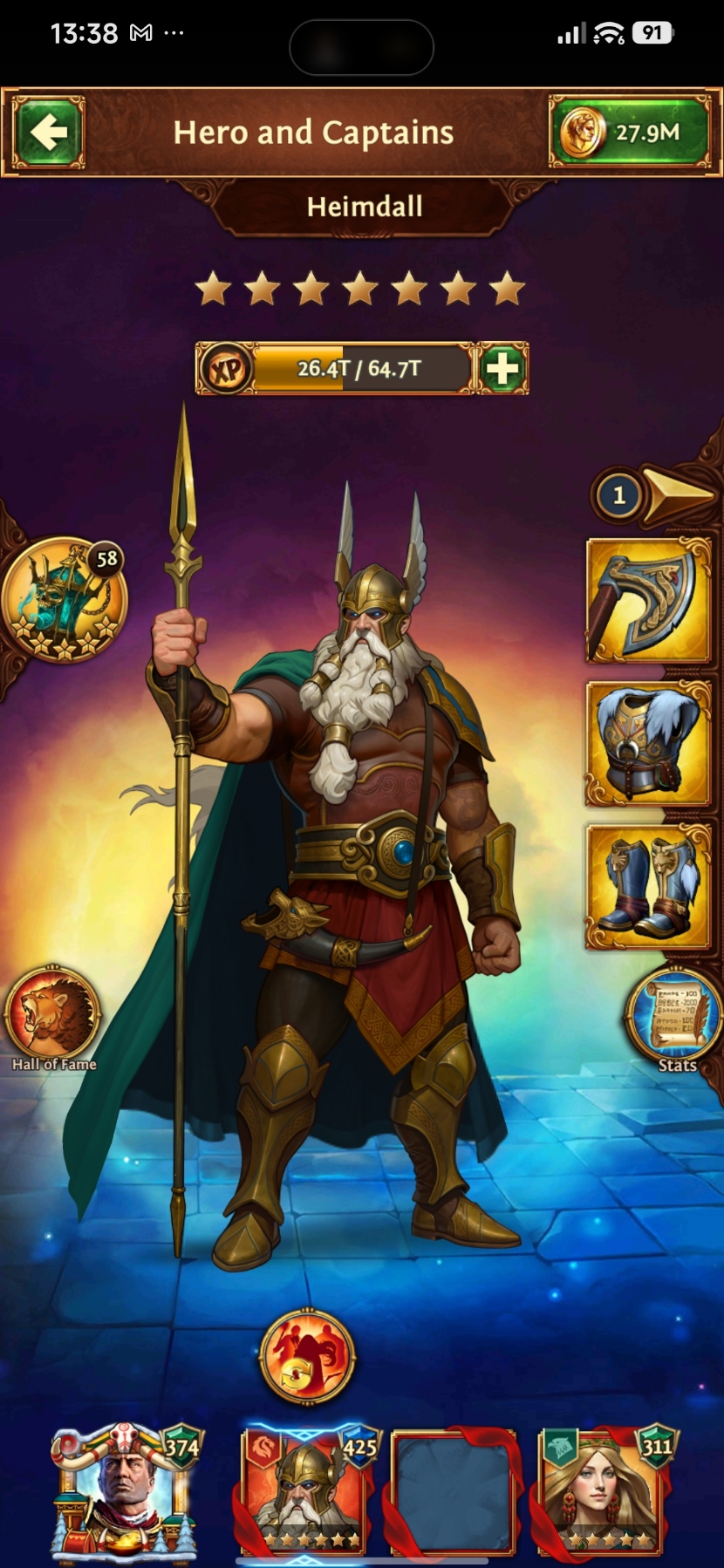
Ensure no idle captains sitting in your town have items equipped that increase army or unit health! Idle health buffs will artificially inflate your numbers and ruin your troop counts.
Safe gear for idle captains: Honoured Ruler items (food production gear is 100% safe to leave equipped).
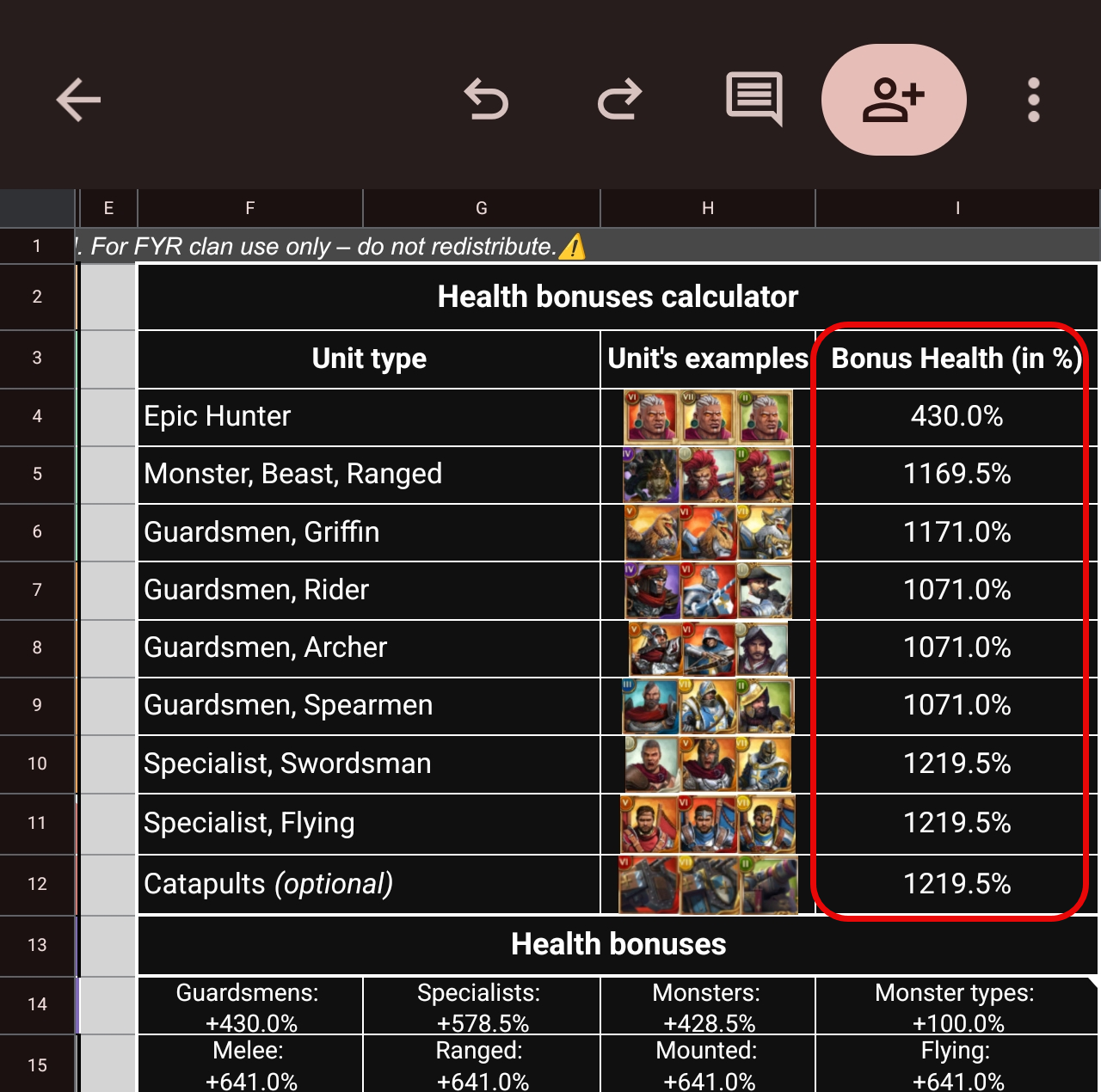
Input Health Bonuses (Column I)
Find your exact Health Bonuses (%) and input them into the calculator. Only fill in designated input cells; never edit calculation formula cells!
In the newest version of the ChagStack calculator, the "Bonus Health in %" parameter has been moved to Column I. If you are referencing older screenshots, guides, or notes that point to Column B, ignore them completely! Enter all percentage health modifiers strictly in Column I.
Tap your stationed troops inside your city → tap a specific unit icon → click the Stats / Bonuses tab to view your exact Health Bonus percentage.

Go to Barracks → select unit type and check the Health Bonus for that troop type. You can even check the health bonus of troops you haven't unlocked yet! Just tap the locked unit's icon to open its stats window.

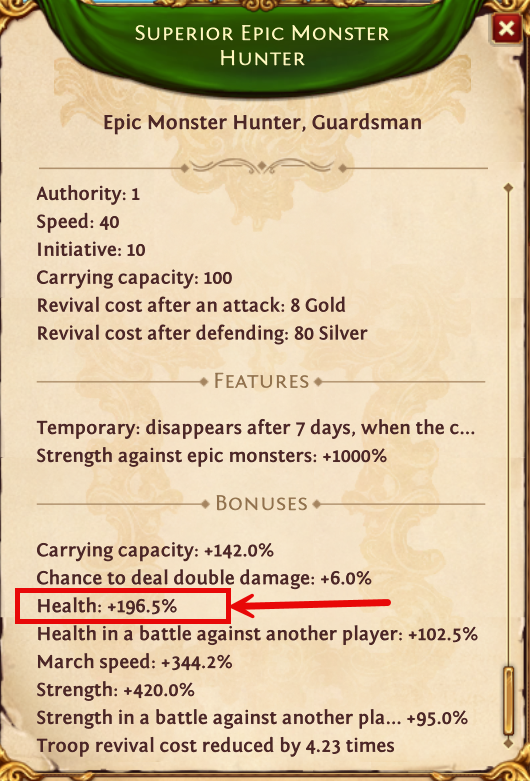
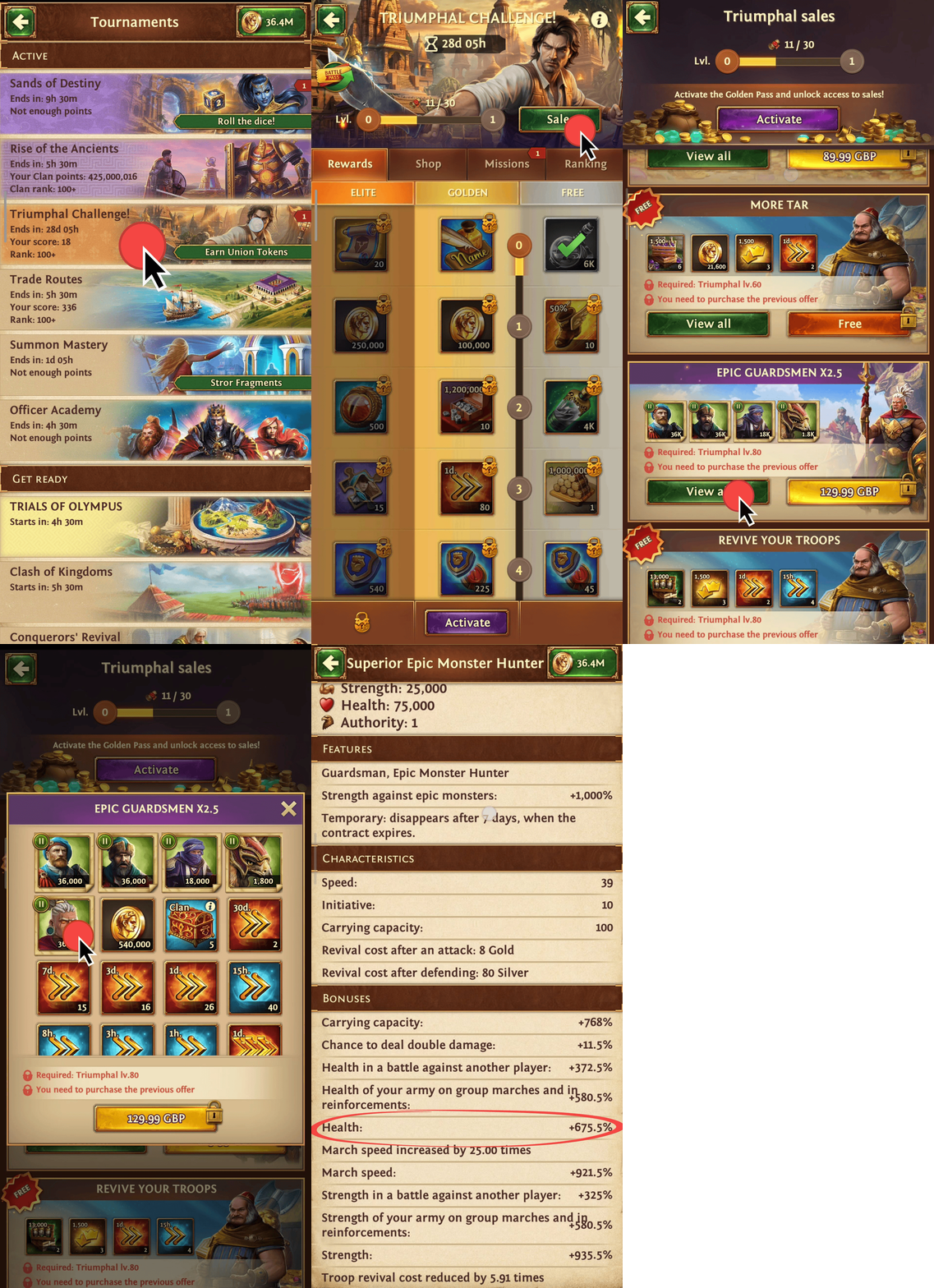
If you don't have any Epic Monster Hunters in your town to check their health bonus, use this phone-only shortcut:
- Go to Triumphal Challenge → Sales.
- Find the Epic Guardsmen x2.5 bundle and tap View All.
- Tap directly on the unit icon! On mobile, this opens the live stats window and displays your current Health Bonus %.
Leadership & Troop Selection
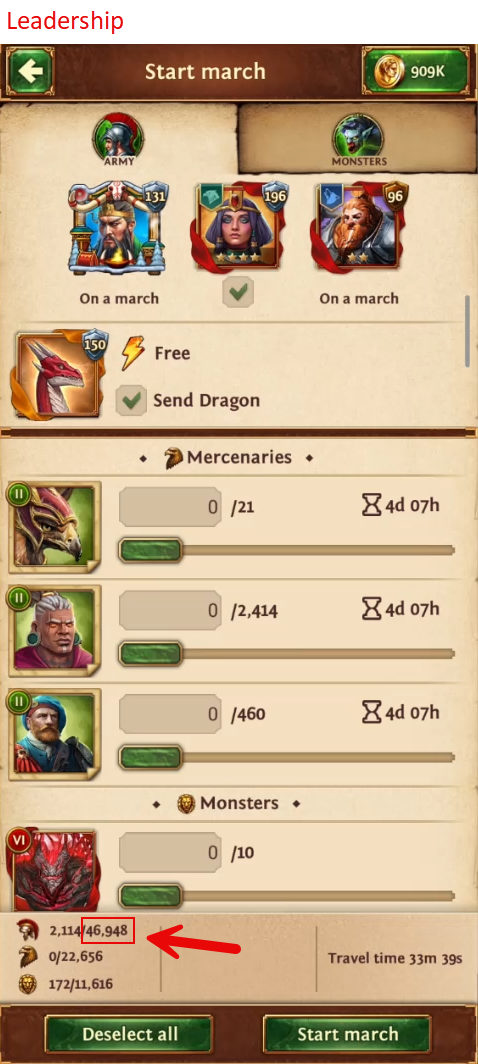
- Check Leadership: Look at your attacking captain's total leadership (make sure your Dragon is active if sending it in the march!).
- Set Planned Attacks: Type your leadership into the sheet and enter how many marches you want to prepare troops for.
- Select Troop Mix: Check the boxes for the specific units you want to include in your stack. The calculator algorithms will adjust stack scaling automatically:
- Guardsmen: Select the 3 highest tiers available (e.g., G6 + G5 + G4).
- Specialists: Select the 1–2 highest tiers available (e.g., S6 + S5).
- Monsters: Select the 2–3 highest tiers available (e.g., M6 + M5).
Check Troop Requirements (Optional)
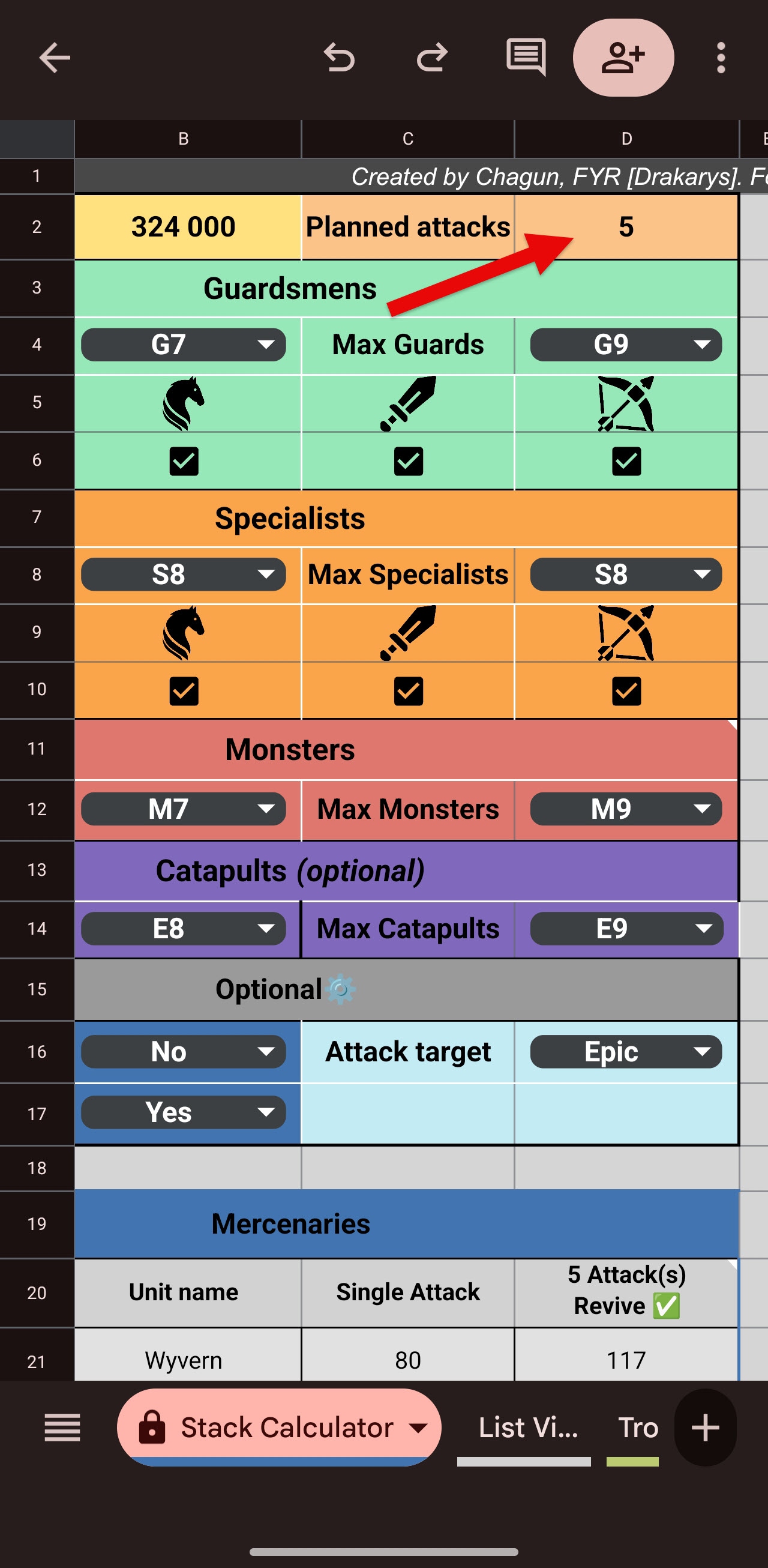
Since there are several ways to check your total stationed or trained troops in-game, use this step to verify if you have enough total troops prepared for multiple consecutive attacks.
- Plan Your Marches: In the Stack Calculator sheet, edit cell D2 ("Planned Attacks") to enter the total number of attacks you plan to launch.
- Verify Total Forces: Check the calculated numbers required against your actual troop counts:
- Look at the "# Attacks" column for units you plan to revive between marches (Mercenaries and Monsters).
- Look at the "# Attacks No Revive" column for standard units (Guardsmen, Specialists, and Catapults) to ensure your barracks can support the entire run without running out of troops.
Send Your Attack & Mobile Tips
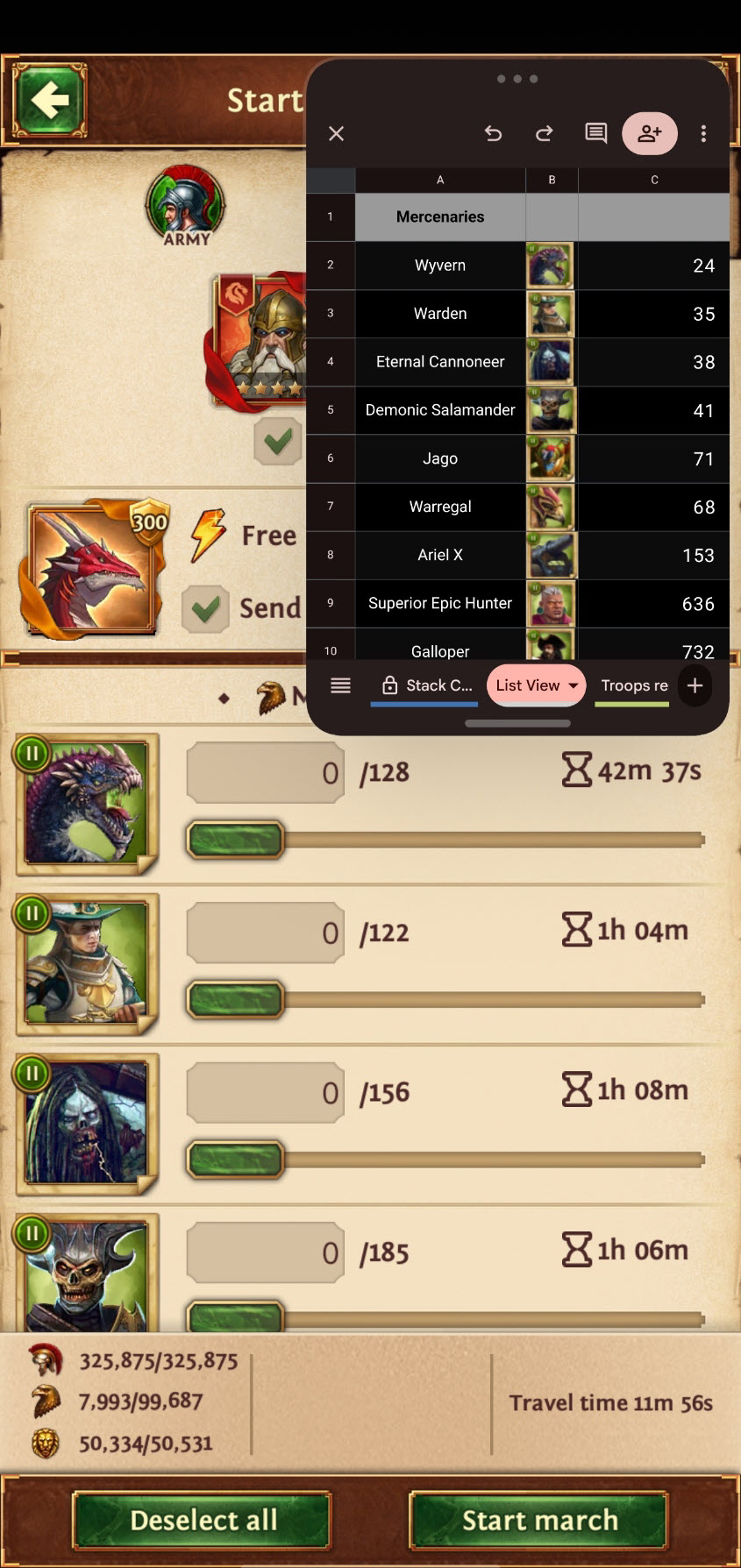
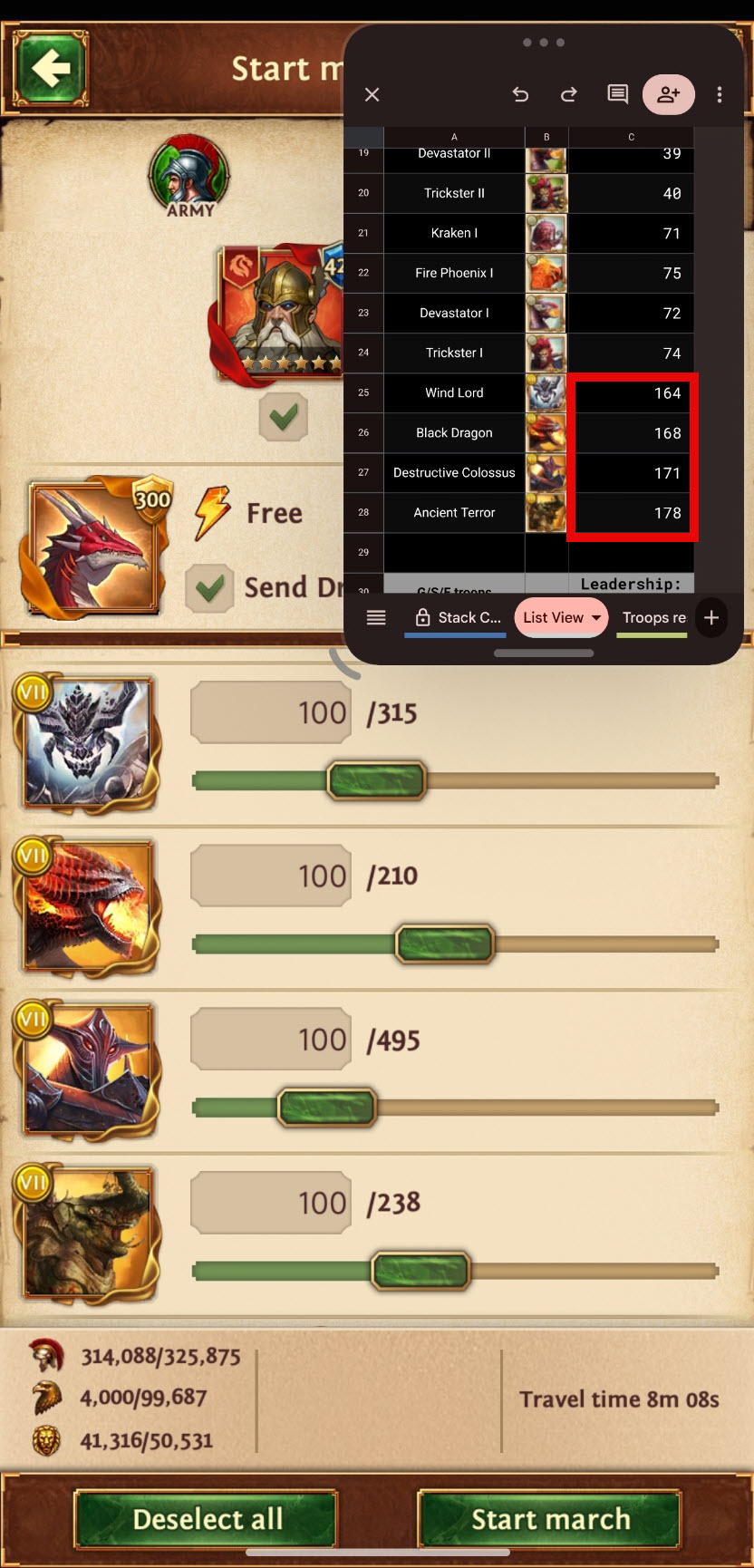
- Send Your Attack: Look at the Single Attack column in the calculator for the exact number of units to send per stack.
When sending an attack, open Google Sheets in a floating window over Total Battle and switch your sheet to List View. This makes it much easier to read unit names and input exact numbers without constantly switching apps!
The calculator does not check your Hero or Captain's "Authority" limit. You may run into a situation where your march hits its Authority cap before you can add all the monsters recommended by the sheet.
How to fix: Always start by adding your highest-tier monsters first. Once they are added, use whatever remaining space you have for lower numbers of the remaining lower-tier monsters.
Post-Attack Revival Rules
Managing temple revivals correctly is essential for maintaining your stack efficiency and silver reserves during heavy events.
- ALWAYS revive Mercenaries and Monsters! They provide crucial firepower and scaling for your stack.
- Avoid the "Revive All" button! Do not automatically revive everything after heavy battles, as this wastes valuable resources on lower-tier fodder.
- Selectively Revive Guardsmen & Specialists: Depending on your silver and gold supplies, selectively revive only your 1 or 2 highest-tier troops (it is completely fine to revive your highest-tier units, such as Tier 8 and Tier 9 troops).